Build and deploy agents with Omni
Omni builds agents from a plain-language description and connects them to the tools you already use. In aixplain Desktop, you describe the job, change the agent's setup beside the chat, test it, and Omni deploys it on cloud, where it runs 24/7. Omni also works with the agents you've already built. This article walks through each step: building, testing and deploying an agent and getting its code in aixplain Desktop, then creating an API key, finding the agent and monitoring it in the web app at app.aixplain.com.
Where each step happens
| Step | Where |
|---|---|
| Build and test the agent (it deploys when saved) | aixplain Desktop, with Omni |
| Get the integration code | aixplain Desktop, with Omni |
| Create an API key | The web app, in Settings → API keys |
| Find the agent | The web app, in Assets |
| Monitor its runs | The web app, in Dashboard |
You sign in to both with the same aixplain account, so an agent you deploy from aixplain Desktop shows up in the web app.
Build an agent
- Open aixplain and select Omni.
- Describe the job: what the agent should do, which tools or apps it needs and what it should return.
- Answer Omni's questions, and approve the steps it asks about.
- When the agent appears as a card in the chat, select the card. The agent opens beside the chat, with a Test tab and a Configure tab.
- Select Configure to see and change its setup.
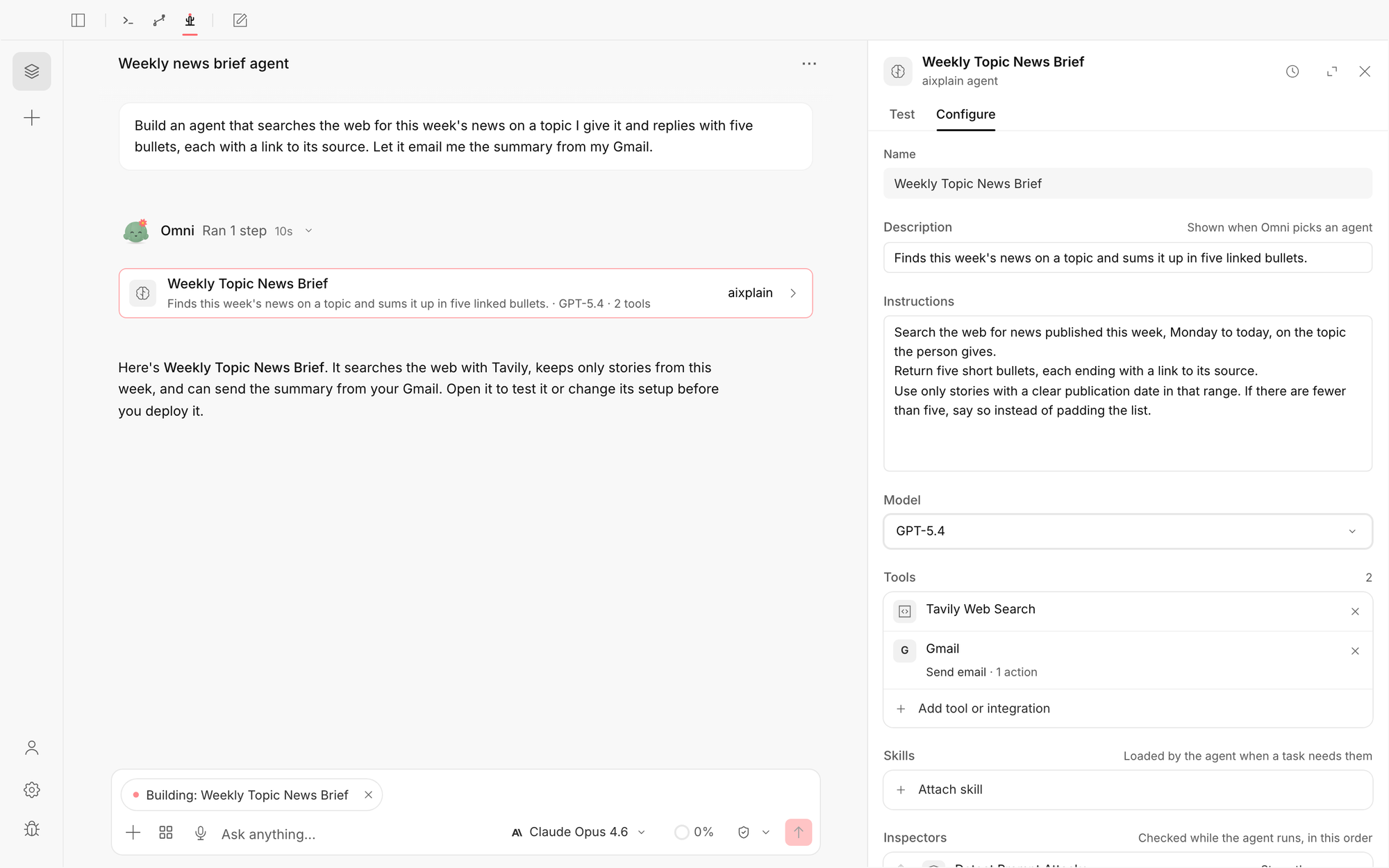
Configure holds the whole setup:
- Name and Description: Omni uses the description to pick the agent for a task.
- Instructions: what the agent does and how.
- Model: the model it runs on.
- Tools: select Add tool or integration to add an aixplain tool or one of your connected apps, such as Gmail, or select Connect a new app. For an app, choose the actions it may use.
- Skills: instructions and files the agent loads when a task needs them.
- Inspectors: checks that run while the agent works, on its input, its steps or its output.
- Output format: text, markdown or json.
- Advanced: Max iterations and Max tokens, with the agent's ID and status. Time and credit budgets aren't in aixplain Desktop yet: set them in the web app's agent builder or with the Agents SDK. See Output and limits.
- Files: not in aixplain Desktop yet. Attach the files an agent reads in the web app's agent builder or with the Agents SDK. See Files.
You can also ask Omni for a change in the chat, such as "only use sources from the last seven days". Omni's changes are marked by Omni in the panel, and History lets you undo any of them.
Example requests
- "Build an agent that answers customer questions on WhatsApp from our help articles, and hands off to a person when it isn't sure."
- "Build an agent that searches the web for this week's news on a topic I give it and replies with five bullets, each with a source link."
- "Make an agent that reads new support emails, sorts them by urgency and drafts a first reply for me to approve."
Set up skills, inspectors, files and limits
The lower part of Configure holds the agent's skills, inspectors, output format and advanced settings.
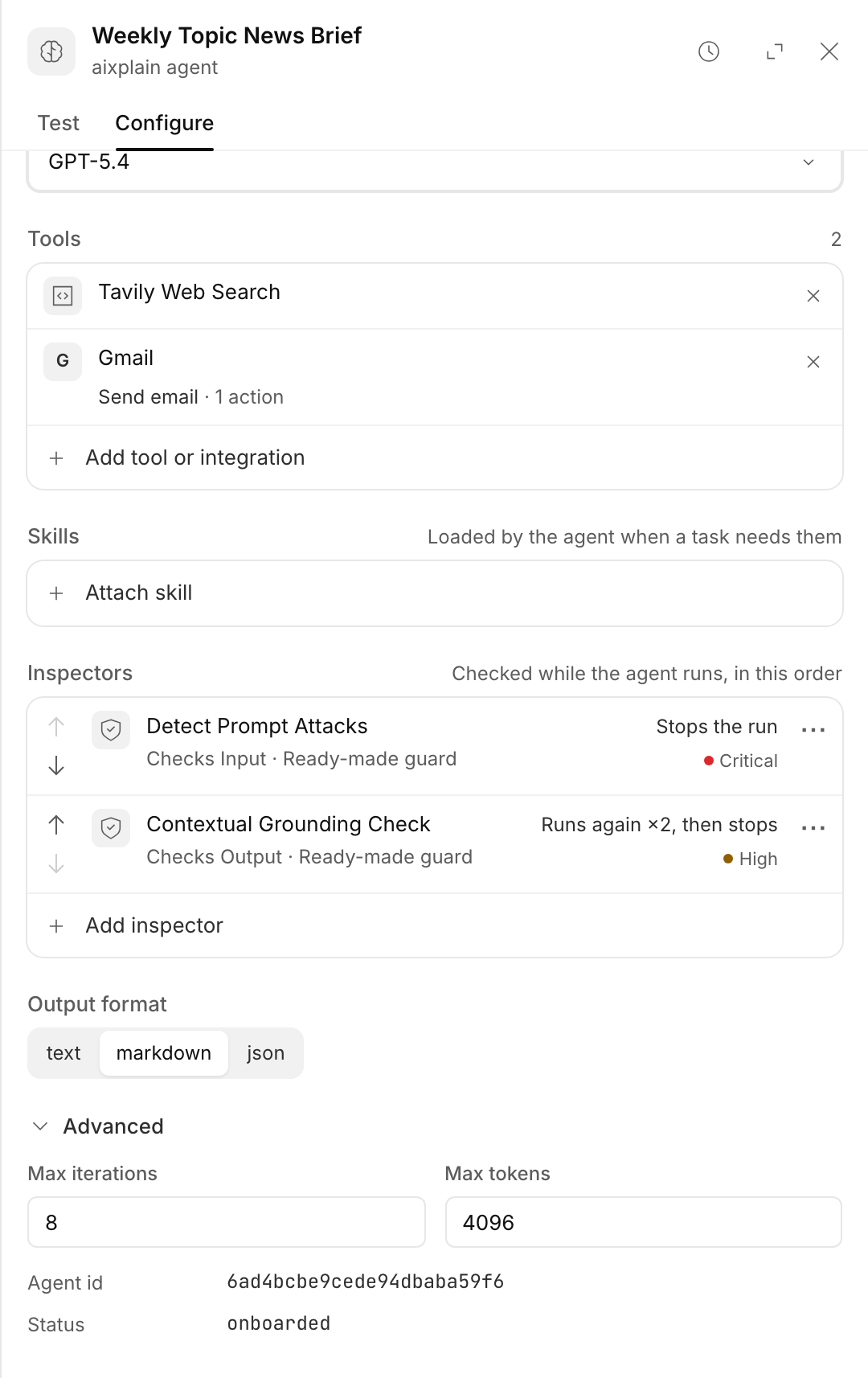
Skills
A skill is a folder of instructions, with optional scripts and resources, that teaches the agent one job, such as how your team writes a sales brief. The agent sees only each skill's short description until a task needs it, so many skills don't crowd its instructions.
- Loading and unloading: during a run, the agent loads a skill when the task calls for it and unloads it when it's done. aixplain can also decide at the start of each turn which skills the request needs, and loads or unloads them before the agent begins.
- Tools that come with a skill: a skill can bring its own tools. They're attached while the skill is loaded and removed when it's unloaded.
- Which skills an agent may use: under Skills in Configure, choose All skills or Only these, and select Attach skill to add one. New skill creates one.
The run's record lists the skills it used and whether each was loaded by the agent or by aixplain.
Inspectors
Inspectors check the agent's work while it runs: its input, each step or its final answer. When one finds a problem, it stops the run, runs the agent again with feedback, rewrites the content or only logs it. Under Inspectors, select Add inspector, then pick a guard, such as Detect Prompt Attacks, or Write a rule in plain words.
Inspectors run in the order you list them. For the built-in guards, every action and how inspectors show in traces and on the dashboard, see Guard agents with inspectors.
Files
An agent can read files you attach to it, such as a price list or a policy document. They're mounted read-only in a folder called agent_files/, up to 200 MB a file and 1 GB in all. In a conversation, files the person uploads are kept under inputs/, files the agent makes go to outputs/, and both stay available in the next turn.
aixplain Desktop doesn't show an agent's files yet. Attach them in the web app, in the agent builder's Files section with Add File, or with the Agents SDK. See Files in the docs.
Output and limits
- Output format: text, markdown or json. Choose json when an app reads the answer.
- Max iterations: the most steps one run can take. Raise it for long, multi-step jobs.
- Max tokens: the longest answer the agent can give.
- Time and credit budgets: cap how long one run takes and how many credits it uses. Set them in the web app's agent builder, as Max duration (30 to 900 seconds) and Max cost (0.01 to 100 credits), or with the Agents SDK. aixplain Desktop doesn't show them yet.
When a run nears a limit, the agent starts wrapping up, and at the limit it stops planning and answers from the steps it finished. The run's record says which limit it reached. See Limits and codes.
Test the agent
- In the panel beside the chat, select Test.
- Type a request in the box at the bottom, or pick a suggestion, and select Run test.
- Read the answer. Under it, you see whether the run completed, how long it took and what it cost in credits.
- Select Run again to repeat a run, or Add to chat to share the result with Omni.
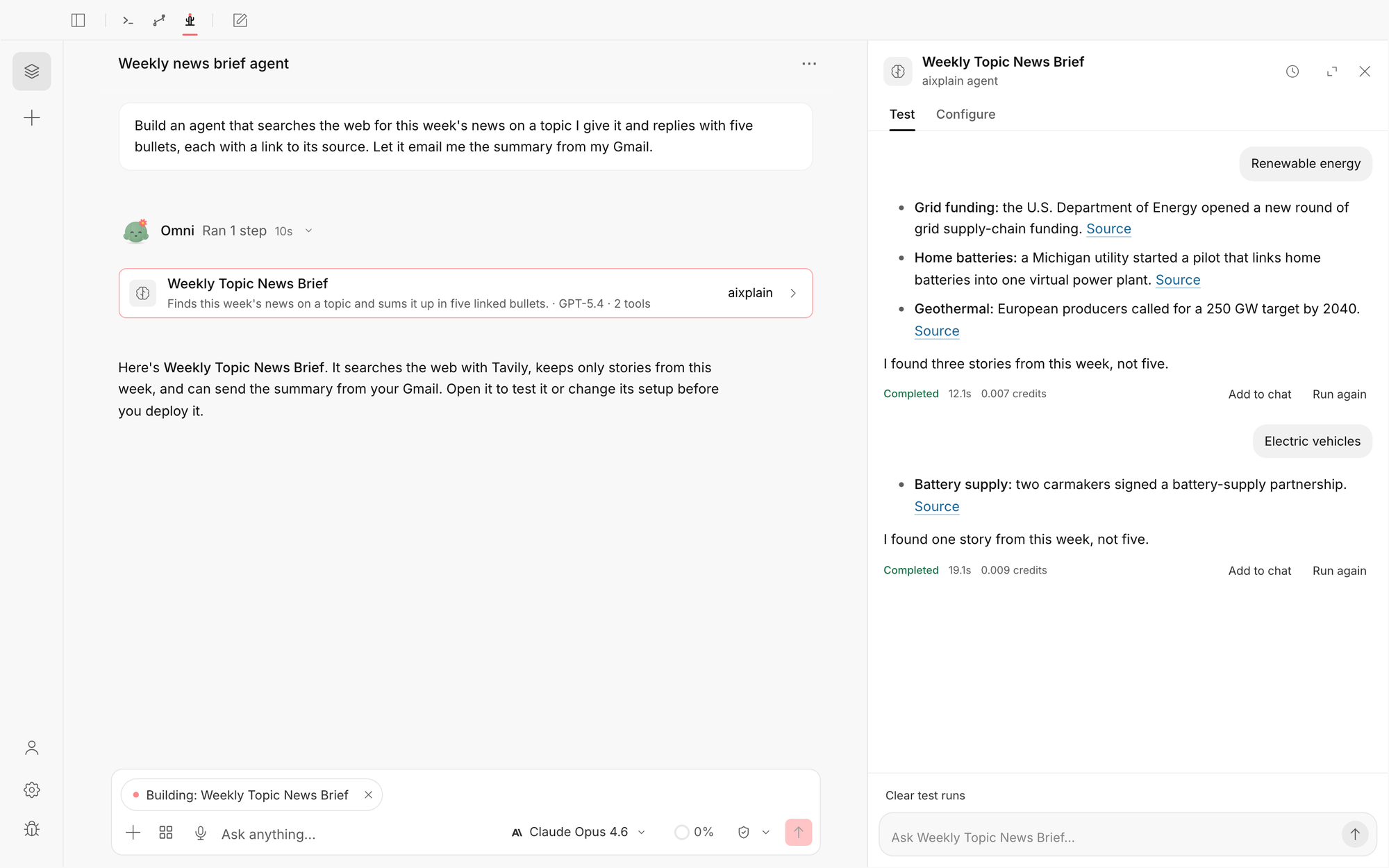
Test runs stay in the panel and don't appear in your chats. Omni can also test the agent for you: ask it to "test this on three hard cases", and its runs show by Omni, each marked Passed or Failed.
Deploy and get the integration code
An aixplain agent is deployed when it's saved: Omni saves it when it builds it, and Save for team in the panel saves your changes. From then on it runs on cloud, 24/7, with its own agent ID. There's no separate deploy step.
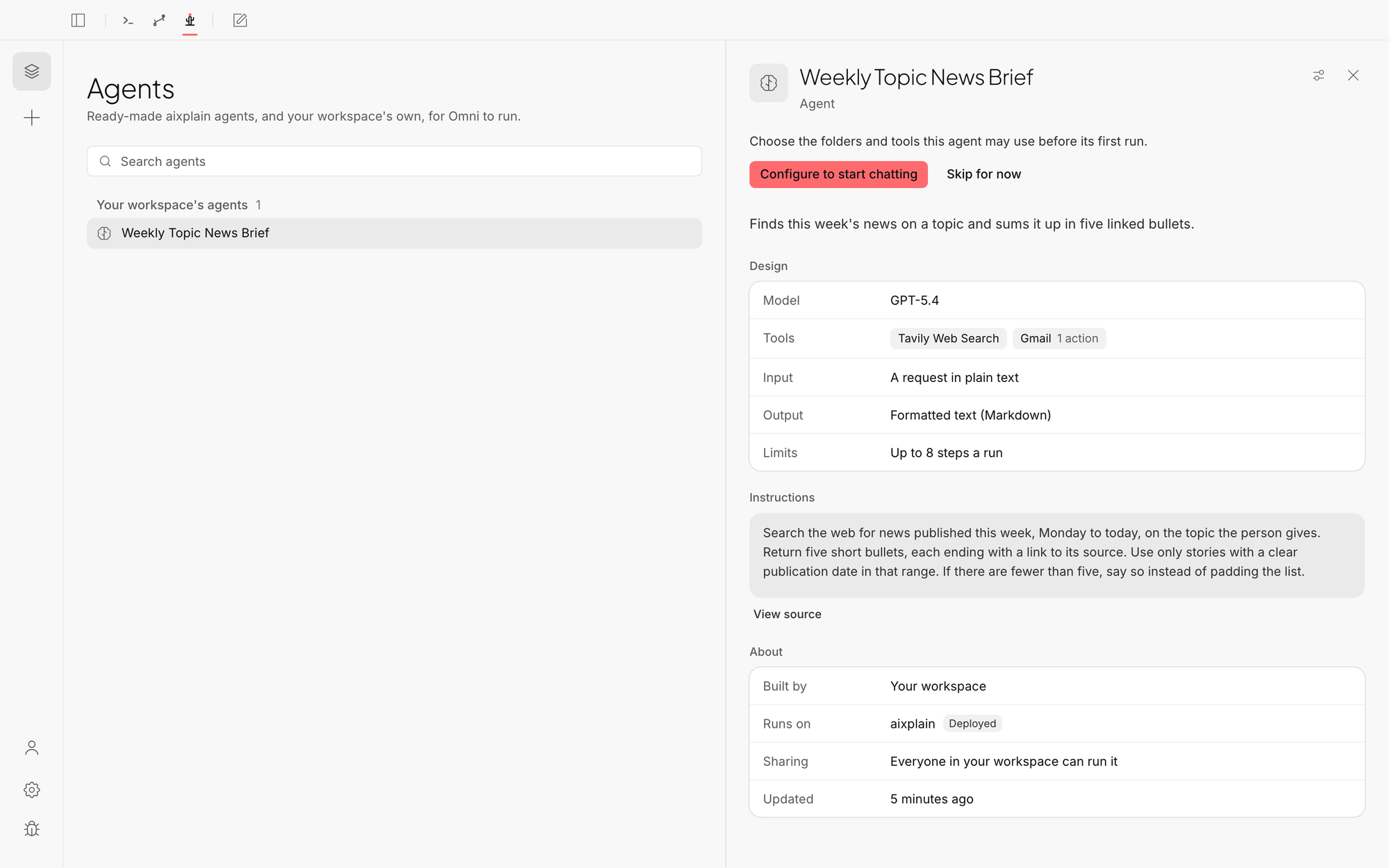
To check it, open Agents in aixplain Desktop and select the agent. Under About, Runs on shows aixplain and Deployed, and Sharing shows who can run it.
To call it from your app, ask Omni for the integration code, for example "Give me the code to call it from my app." Omni answers with the agent's ID, a Python example for the Agents SDK and a pair of curl commands: one starts a run, the other reads its result.
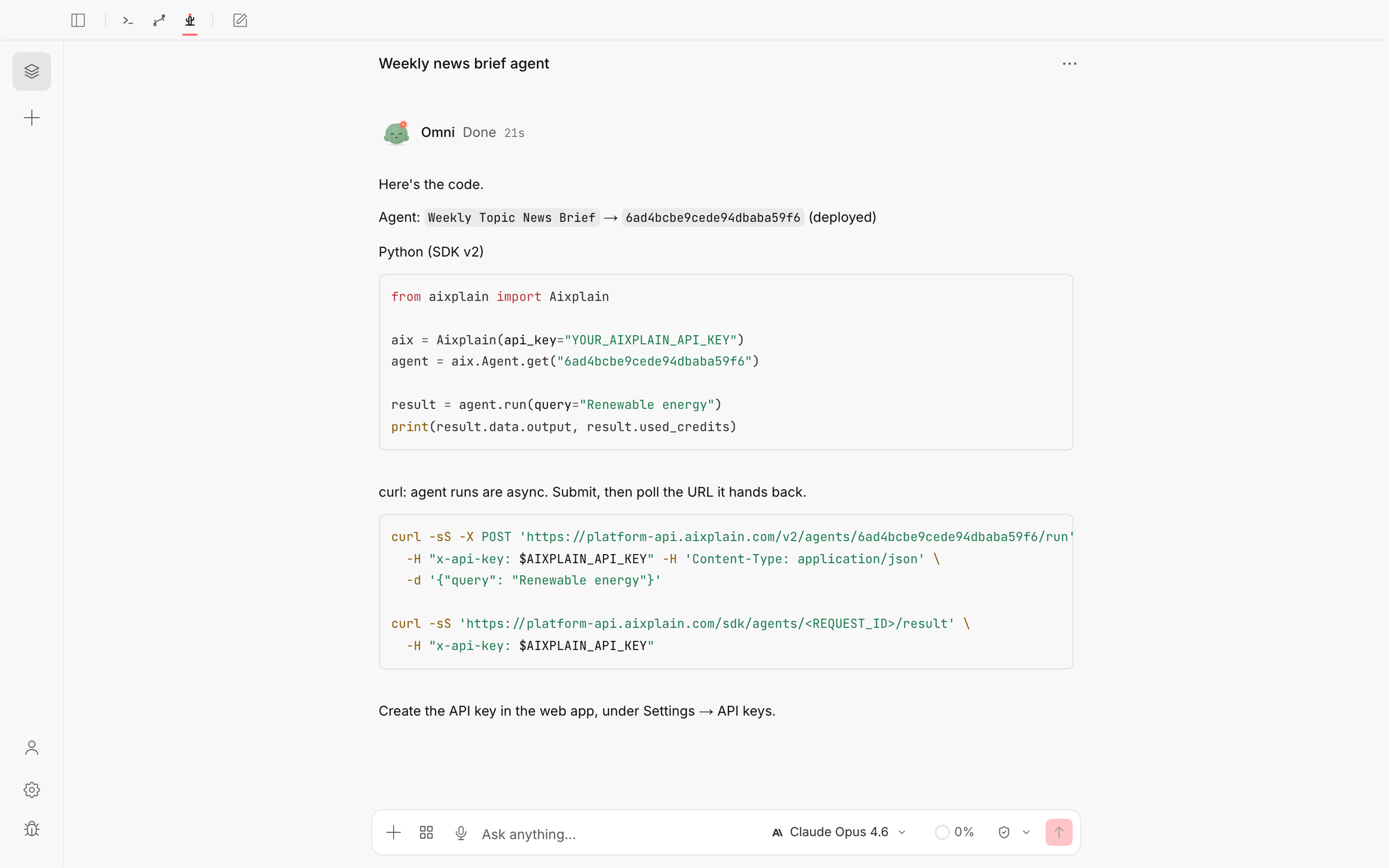
Agent runs are asynchronous: the first call returns a URL, and you read the result from it when the run finishes. The code needs an API key, which you create in the web app. For more, see Deployment in the Agents SDK docs.
On the Enterprise plan, the same agent can run on your own servers instead: on-prem, in your VPC or air-gapped, with no rebuild. See Run the aixplain OS on-prem.
Create an API key
- Sign in at app.aixplain.com with the same account.
- Open Settings → API keys in the workspace the agent belongs to.
- Select Create an API key.
- Enter a Key name that says where it runs, such as
Production web app. - Optionally set an Expiration date and a Credit limit with its Limit period.
- Leave Create as admin key off. Admin keys manage limits but can't run agents.
- Select Create, then copy the key.
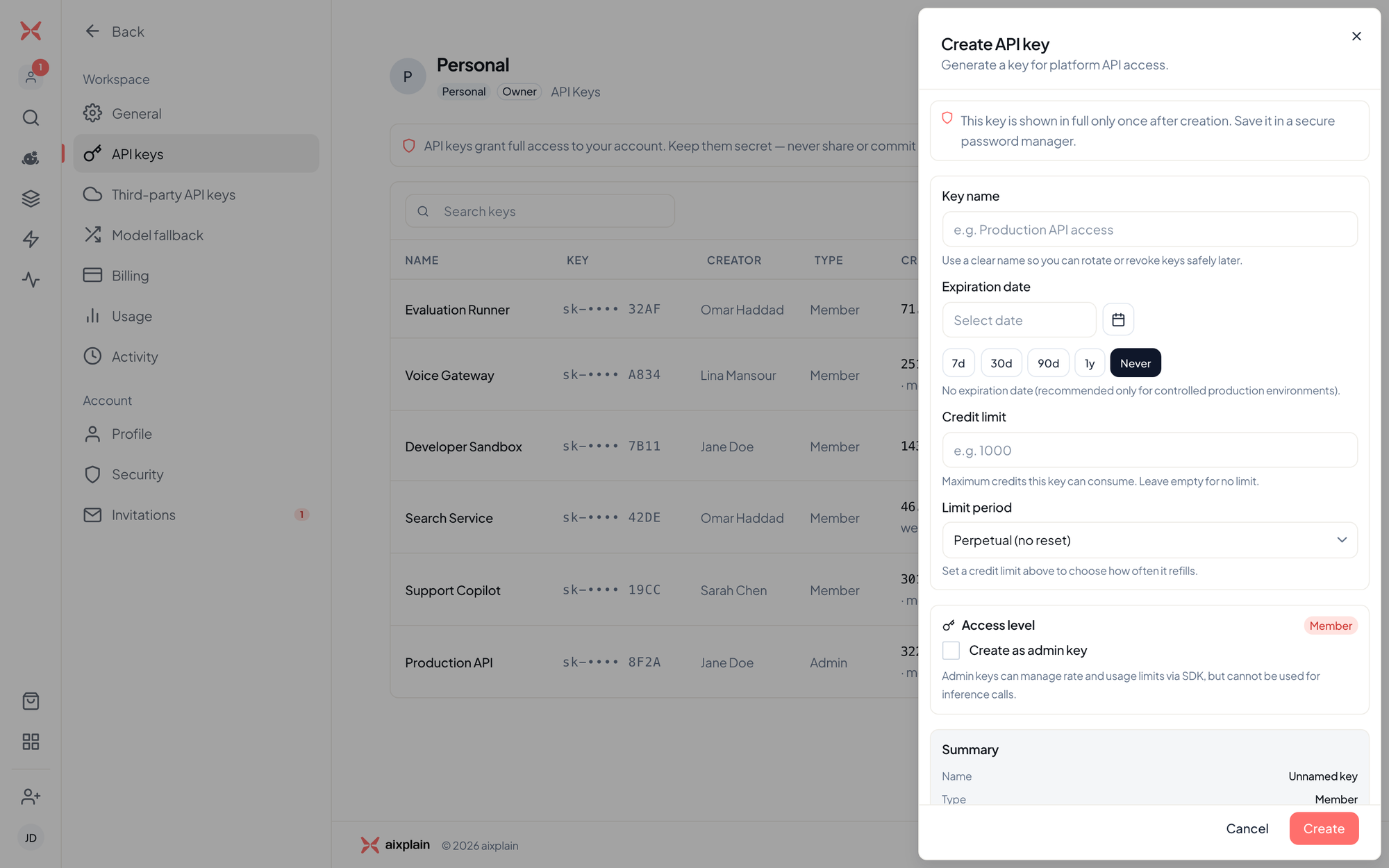
To see a key again later, open its ⋮ menu in the list and select View key, then Reveal key. Only the person who created a key can reveal it.
Find the agent in the web app
Your deployed agent is listed with every other asset in the web app.
- Open Assets and select the Agents filter. Each agent shows how many times it ran and when it last ran.
- Select the agent. Its drawer opens beside the list.
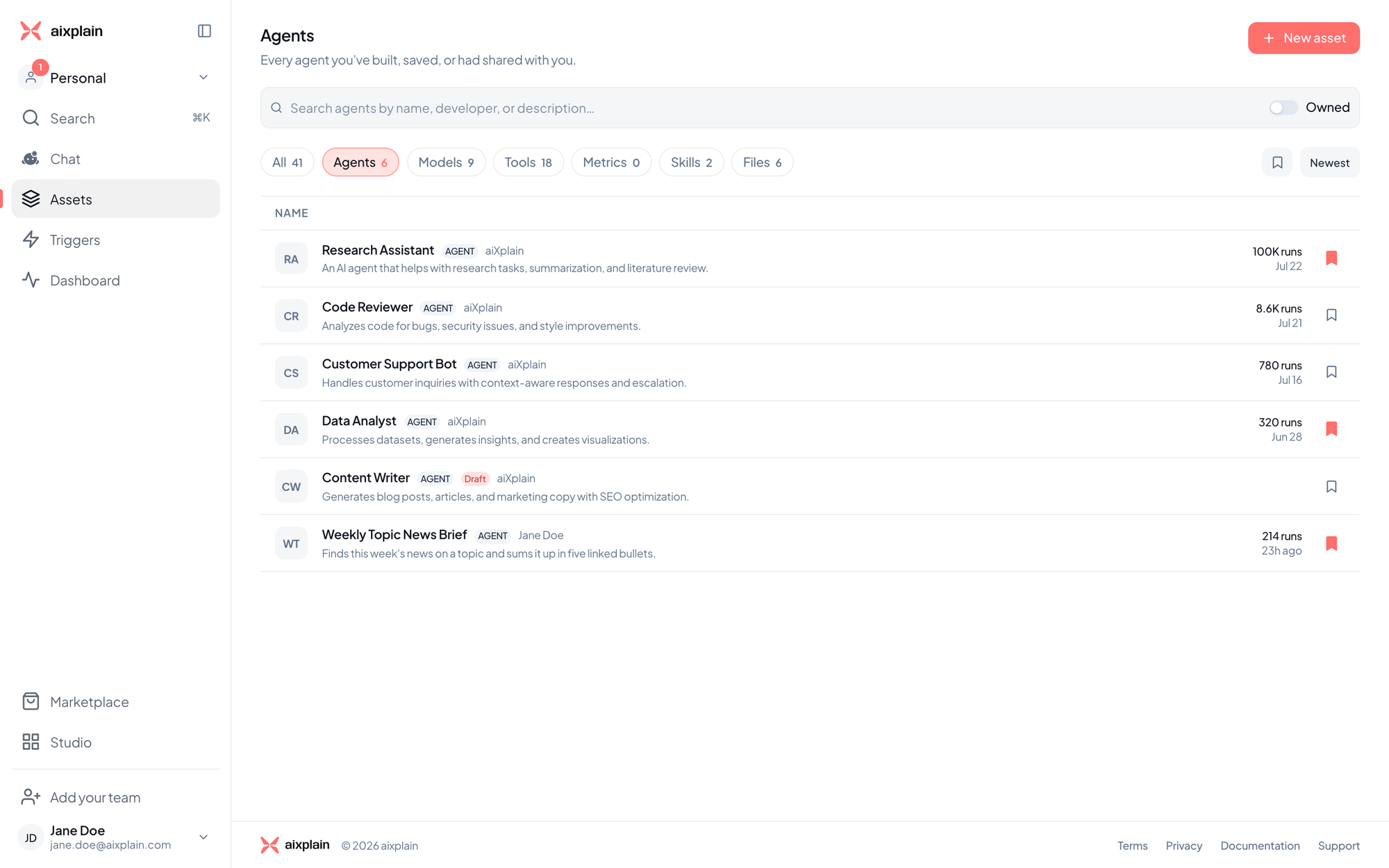
What's in the agent drawer
The top of the drawer shows the agent's name, who built it and its Path, with buttons to copy the path and the agent's link. Open page opens the agent's full page, and Chat at the bottom starts a chat with it.
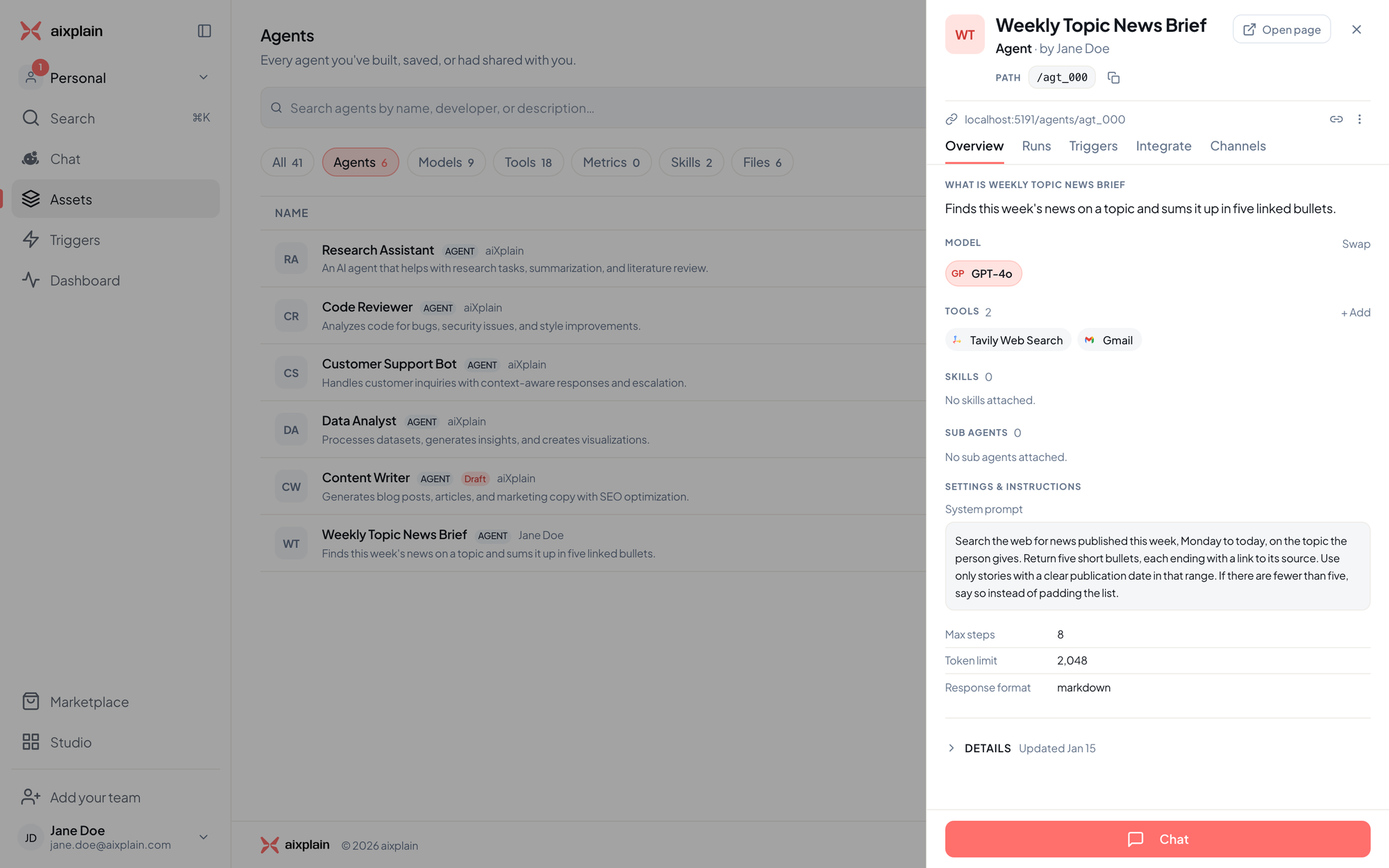
The drawer has five tabs:
- Overview: what the agent does, its Model (select Swap to change it), its Tools (select Add for more), Skills and Sub agents. Under Settings & instructions are its system prompt, Max steps, Token limit and Response format, and Details has its type, developer, host, privacy, version, dates, ID and path.
- Runs: the agent's 10 most recent runs, with when each ran, whether it completed or failed and how long it took. View all opens the agent in Dashboard.
- Triggers: the schedules and events that start the agent, each with its status and its next and last run. Go to triggers sets up a new one.
- Integrate: the agent's path, endpoint and code to call it, in Python, Fetch, Axios and cURL.
- Channels: connect the agent to WhatsApp or Telegram, so people can message it where they already chat. Scan the code or send the pairing code, and revoke access here later.
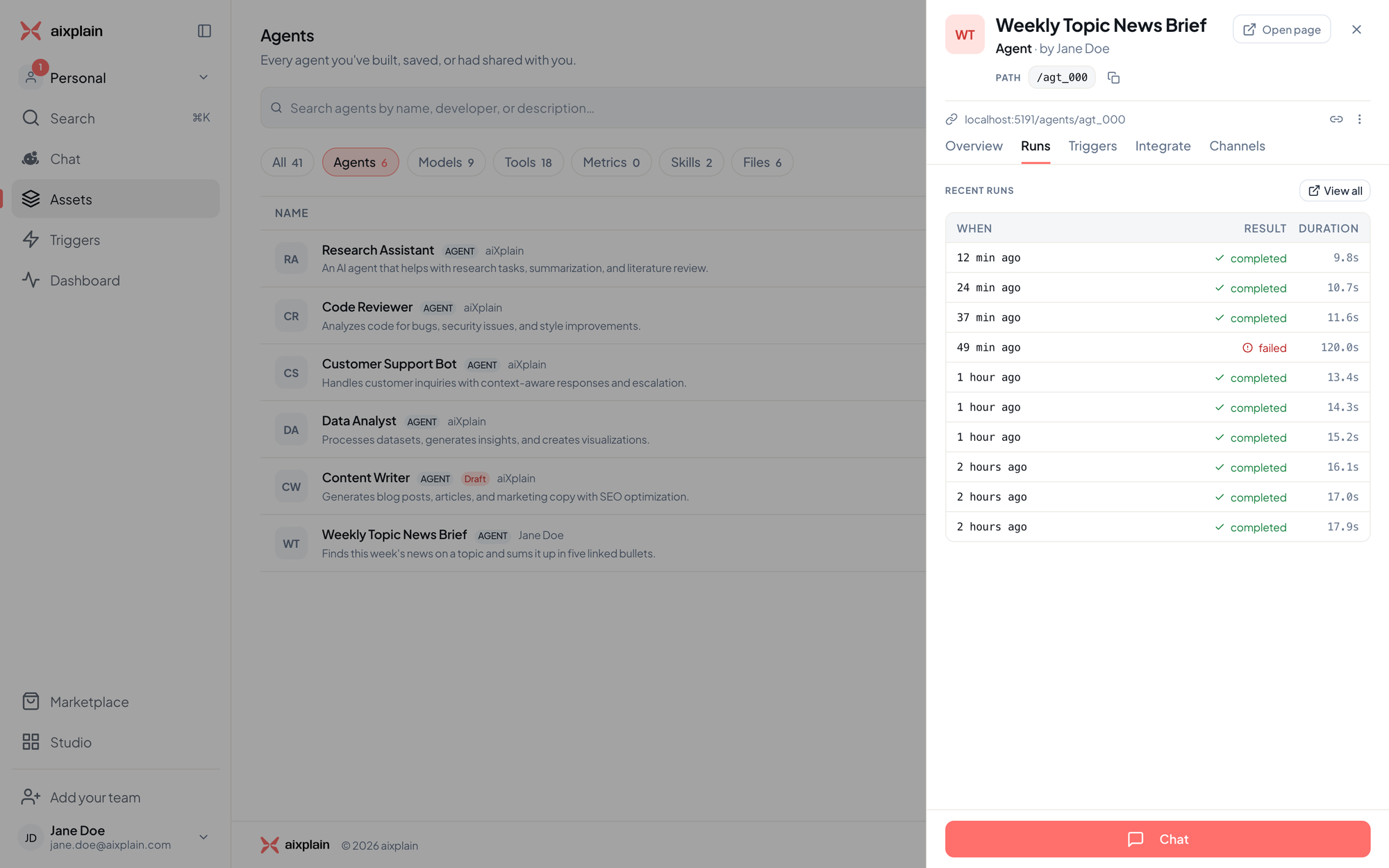
The ⋮ menu at the top has Edit agent, Edit metadata, Save, Docs, Copy agent ID and, for the workspace owner, Delete.
On the agent's full page, the header adds Open builder and Try agent, and Agent actions adds Connect channels and Duplicate. Some actions show only for the agent's owner.
Monitor the agent
Dashboard shows how your agents are doing: runs, success rate, latency, cost and errors.
- Select Dashboard in the sidebar, or View all on the agent's Runs tab.
- Under Agents, select Select agents and pick the agent.
- Choose a range: 24h, 7d, 30d or Custom.
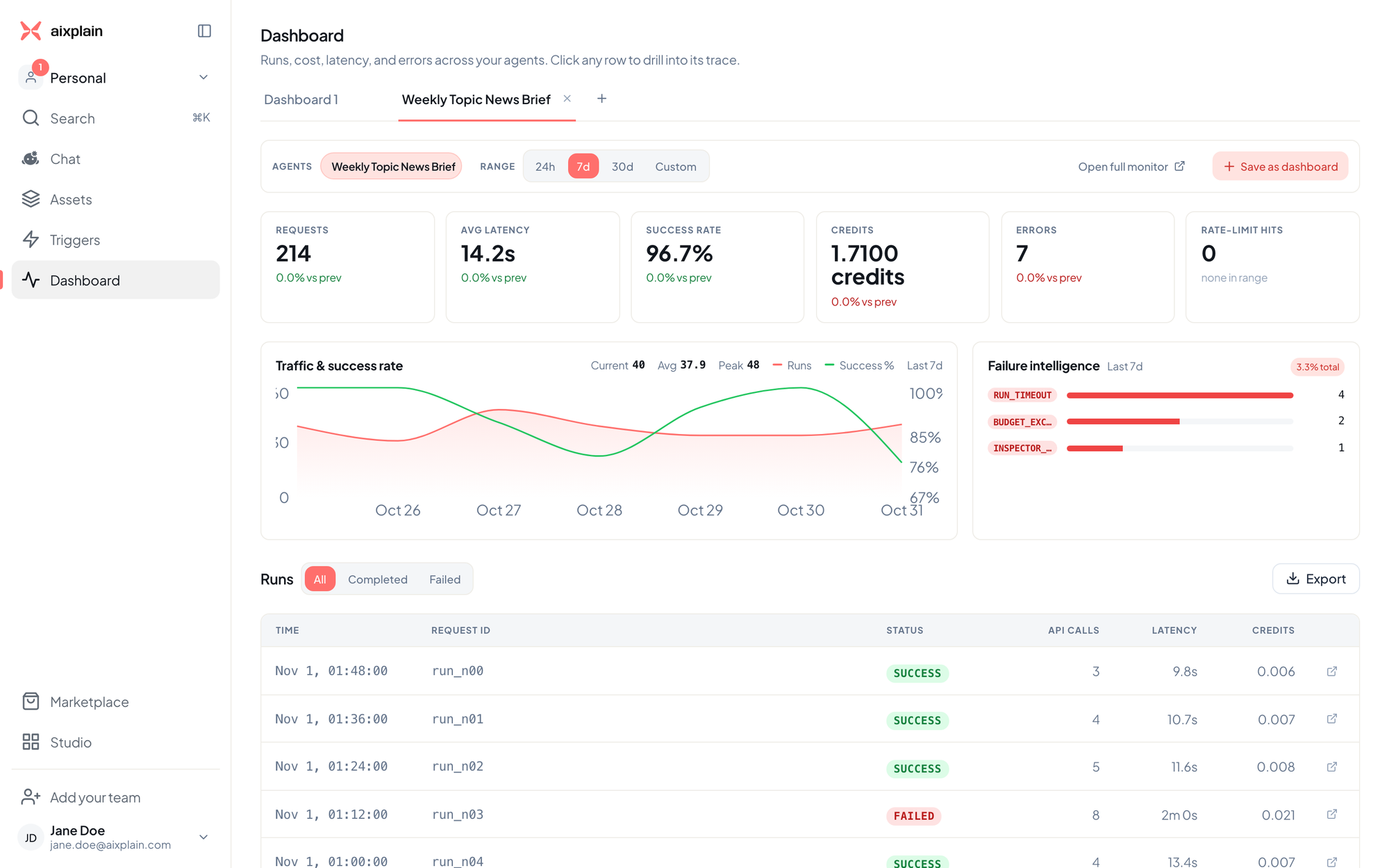
Select any run to see its trace: the input, the answer, each step and what it cost. Save as dashboard keeps the view as a tab. For every number and code on these pages, see Monitor your agents.
Use agents you've already built
Omni works with every agent in your workspace, whether you built it with Omni, in Studio, with Koder or with the Agents SDK.
- Ask Omni to use it: name the agent in your request, for example "Use my Weekly Topic News Brief agent to get this week's news on solar power."
- Find it in Agents: open Agents in aixplain Desktop. Your workspace's agents lists them, and selecting one shows its design and lets you run it with Omni.
- Change it with Omni: ask Omni to add a tool, change the instructions or schedule the agent, and its card opens beside the chat like a new one.
Run it on a schedule or a trigger
Ask Omni, for example "Run my news brief agent every Monday at 8:00 on renewable energy and send me the result." A trigger can also run the agent when an event arrives from a connected tool, such as a new email. In the web app, the agent's Triggers tab lists them. See Schedule runs and triggers.
Pricing and usage
Testing and running agents draws credits from your workspace balance for the models and tools each run calls. One credit is one US dollar, and every run shows what it cost. Each tool's price is on its Marketplace card. For plans and rates, see Account, plans and billing and Pricing.
Limitations
- Deploying to your own servers needs the Enterprise plan.
- Omni in aixplain Desktop and Omni on the web don't share chats or settings yet. Deployed agents are in your workspace, so both can use them.
- API keys are created in the web app, not in aixplain Desktop.
- Building, testing and running agents needs a network connection.
Frequently asked questions
I already built an agent. Do I need to rebuild it for Omni?
No. Any agent saved in your workspace is listed in Agents in aixplain Desktop, and Omni can run it, change it or schedule it. See Use agents you've already built.
Where is my agent's API key?
Agents don't have their own keys. Create a key for your workspace in Settings → API keys in the web app, and use it with the agent's ID. You can reveal a key you created again later. See Create an API key.
How do I connect my agent to WhatsApp?
In the web app, open the agent from Assets, select the Channels tab and choose WhatsApp, then pair your phone. To connect an app the agent uses, such as Gmail, add it in Configure → Tools.
Can I build agents in code instead?
Yes. Use Koder in aixplain Desktop, or the Agents SDK in your own code. See Build and deploy agents.
Get help
- Learn more about Omni: see Get started with Omni.
- Go deeper: see Guard agents with inspectors and Monitor your agents.
- See what changed: read the release notes.
- Report a problem: email care@aixplain.com with what you asked, what happened and what you expected. Remove credentials and private data first.
Still need help?
Report a bug on GitHub or write to us, and include your version and operating system.